GPU Management on Kubernetes: From Architecture to kubectl
Running AI workloads on Kubernetes introduces an operational question very quickly: how do you know that a GPU is available, assigned to the right workload, and actually usable from a container?
This guide follows that path with concrete commands: provision the GPU stack, inspect scheduler capacity, reserve a device, run CUDA computation, and diagnose failures. It uses the NVIDIA device-plugin model and the nvidia.com/gpu extended resource.
The lab assumes compatible Linux GPU workers and starts with full GPUs. MIG and time-slicing change the meaning of the resources advertised to Kubernetes, so they are addressed separately.
Example files: GPU inspection Pod · CUDA validation Job .
How the components fit together
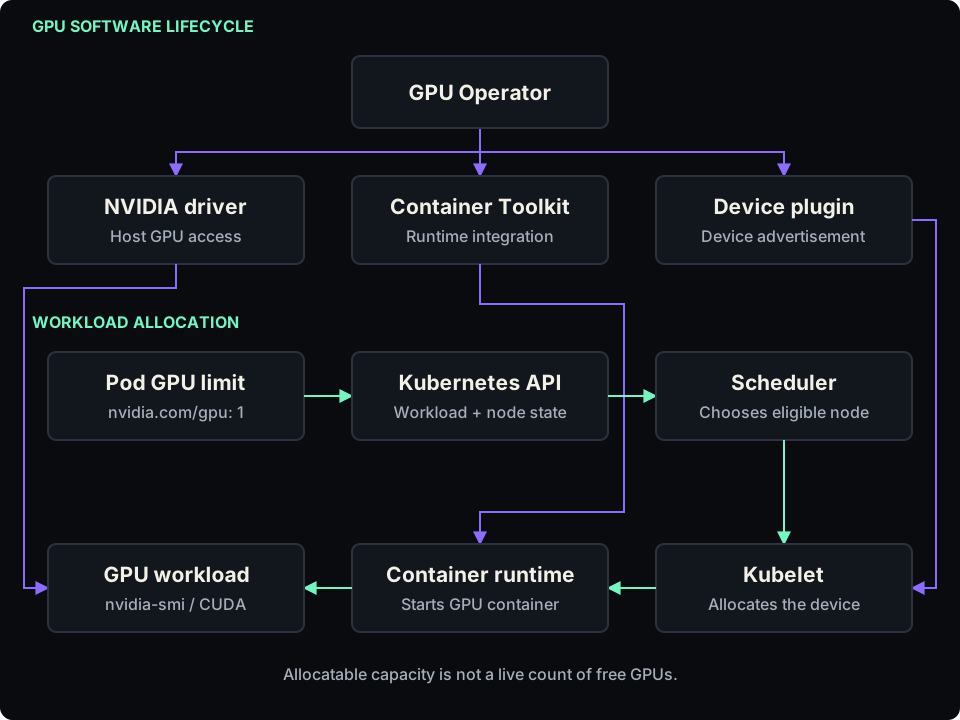
Download the Mermaid architecture source .
The Operator manages the GPU software stack; Kubernetes schedules the requested devices. The workload examples run without root, elevated capabilities, or a mounted Kubernetes API token.
1. Prepare the GPU stack
Use this installation example on a compatible cluster where the Operator will own the GPU stack. On AKS, EKS, GKE or another managed platform, check the provider’s GPU setup first to avoid competing driver or device-plugin installations. Review the platform support matrix before selecting the release.
For an administrator installing the Operator for the first time:
kubectl create namespace gpu-operator
kubectl label namespace gpu-operator \
  pod-security.kubernetes.io/enforce=privileged

helm install gpu-operator \
  oci://nvcr.io/nvidia/cloud-native-charts/gpu-operator \
  --namespace gpu-operator \
  --version v26.7.2 \
  --wait --timeout 15m

kubectl -n gpu-operator get pods -o wide
kubectl get clusterpolicy
The chart version is pinned to the patch release documented at preparation time. Check chart provenance and the supported component versions before deployment. Existing Node Feature Discovery requires --set nfd.enabled=false; existing drivers or Container Toolkit require the corresponding installation options. The cluster policy should reach ready. Follow the NVIDIA installation guide
.
Some Operator components require host access and privileged execution to manage drivers and the runtime. Keep this namespace restricted to platform administrators; the application namespace does not need those privileges. See NVIDIA security considerations .
2. Inspect GPU inventory and allocation
kubectl get nodes -o custom-columns='NODE:.metadata.name,GPU:.status.allocatable.nvidia\.com/gpu'
kubectl get nodes -L nvidia.com/gpu.product
The first command displays schedulable GPU resource capacity, rather than free devices. A missing value means that resource is not advertised on that node. Product labels depend on GPU Feature Discovery being configured.
Choose an actual node from the output, replacing gpu-worker-01 below:
kubectl describe node gpu-worker-01
Read Capacity, Allocatable, Allocated resources, Taints, and Conditions together. Allocatable is not reduced as Pods reserve devices. For this simple full-GPU lab, compare allocatable GPU units with requested GPU units to assess remaining scheduling capacity; placement constraints and device health still matter.
3. Run an unprivileged GPU inspection Pod
Save the following as gpu-inspect.yaml, or download the inspection manifest
:
apiVersion: v1
kind: Pod
metadata:
  name: gpu-inspect
  namespace: gpu-lab
spec:
  restartPolicy: Never
  activeDeadlineSeconds: 300
  automountServiceAccountToken: false
  securityContext:
    runAsNonRoot: true
    runAsUser: 10001
    seccompProfile:
      type: RuntimeDefault
  containers:
    - name: inspect
      image: nvcr.io/nvidia/k8s/cuda-sample:vectoradd-cuda12.5.0-ubuntu22.04
      command: ["nvidia-smi"]
      securityContext:
        allowPrivilegeEscalation: false
        readOnlyRootFilesystem: true
        capabilities:
          drop: ["ALL"]
      resources:
        requests:
          cpu: 100m
          memory: 128Mi
        limits:
          cpu: "1"
          memory: 512Mi
          nvidia.com/gpu: 1
Then create the lab namespace and run the Pod:
kubectl create namespace gpu-lab
kubectl label namespace gpu-lab \
  pod-security.kubernetes.io/enforce=restricted
kubectl apply -f gpu-inspect.yaml
kubectl -n gpu-lab logs -f gpu-inspect
If log retrieval starts before the container, inspect its state and retry after startup. The Pod reserves one GPU, runs nvidia-smi, and exits. Its deadline bounds scheduling and execution time; a completed Pod does not keep a running GPU process. The manifest uses NVIDIA’s documented CUDA sample image but overrides its command for inspection.
nvidia.com/gpu: 1 in limits requests one device-plugin resource unit. If its GPU request is omitted, Kubernetes defaults it to the limit. If both are specified, they must match. This does not specify a percentage of processing power or a VRAM budget. See Kubernetes GPU scheduling
.
If your runtime setup requires an explicit RuntimeClass, inspect kubectl get runtimeclass and set spec.runtimeClassName to the NVIDIA class configured by your platform. For a tainted GPU pool, add only the toleration matching its actual taint. Neither setting should be guessed.
4. Execute real CUDA computation
The next Job runs the sample’s default vector-add workload, which exercises CUDA computation. Save it as cuda-check.yaml, or download the CUDA Job manifest
:
apiVersion: batch/v1
kind: Job
metadata:
  name: cuda-check
  namespace: gpu-lab
spec:
  backoffLimit: 0
  activeDeadlineSeconds: 300
  ttlSecondsAfterFinished: 3600
  template:
    spec:
      restartPolicy: Never
      automountServiceAccountToken: false
      securityContext:
        runAsNonRoot: true
        runAsUser: 10001
        seccompProfile:
          type: RuntimeDefault
      containers:
        - name: vector-add
          image: nvcr.io/nvidia/k8s/cuda-sample:vectoradd-cuda12.5.0-ubuntu22.04
          securityContext:
            allowPrivilegeEscalation: false
            readOnlyRootFilesystem: true
            capabilities:
              drop: ["ALL"]
          resources:
            requests:
              cpu: 100m
              memory: 128Mi
            limits:
              cpu: "1"
              memory: 512Mi
              nvidia.com/gpu: 1
Apply the Job and inspect its result:
kubectl apply -f cuda-check.yaml
kubectl -n gpu-lab wait --for=condition=complete \
  job/cuda-check --timeout=300s
kubectl -n gpu-lab logs job/cuda-check
The documented success marker is Test PASSED; this is expected output, not a result observed here. The sample image and workload are described in the NVIDIA CUDA example
. Validate driver, CUDA and GPU architecture compatibility for your hardware. The Job has no retries, a five-minute deadline, and cleanup one hour after completion. To rerun it, delete the old Job before reapplying its manifest.
5. Query utilization from an existing GPU workload
For a running application Pod that already owns a GPU and exposes nvidia-smi, replace inference-pod with its real name:
kubectl -n gpu-lab exec inference-pod -- nvidia-smi -L
kubectl -n gpu-lab exec inference-pod -- nvidia-smi \
  --query-gpu=uuid,name,utilization.gpu,memory.used,memory.total \
  --format=csv
These commands cannot execute in the inspection Pod after it has completed. They need pods/exec permission, so do not grant them to every reader by default. Reported metrics describe the exposed GPU device, not necessarily an individual container’s consumption. See the nvidia-smi reference
. Use DCGM Exporter with your monitoring platform for continuous GPU telemetry; kubectl top ordinarily reports CPU and memory, not GPU utilization.
6. Set a namespace allocation ceiling
An administrator can cap this namespace at two GPU resource units:
kubectl -n gpu-lab create quota gpu-budget \
  --hard=requests.nvidia.com/gpu=2
kubectl -n gpu-lab describe quota gpu-budget
This limits aggregate requests; it does not reserve GPUs, guarantee availability, or impose a monetary budget. Use the requests. prefix for extended-resource quotas. See Kubernetes resource quotas
.
7. Diagnose failures
kubectl -n gpu-lab get pods -o wide
kubectl -n gpu-lab describe pod gpu-inspect
kubectl -n gpu-lab describe job cuda-check
kubectl -n gpu-lab get events --sort-by=.metadata.creationTimestamp
kubectl -n gpu-operator get pods -o wide
| Observation | Investigate |
|---|---|
Insufficient nvidia.com/gpu | Allocations, healthy devices, and node resource advertisement |
| Untolerated taint or affinity mismatch | Actual node taints and Pod placement rules |
FailedCreate with a quota error | Job events and namespace quota; a Pod may never be created |
ImagePullBackOff | Image tag, registry access, credentials and worker architecture |
| Runtime creation failure | NVIDIA runtime, toolkit, device plugin and required RuntimeClass |
| CUDA initialization failure | Driver/runtime compatibility and GPU health |
| Non-root or filesystem permission failure | Image compatibility, injected device permissions and workload paths |
The supplied hardening settings need validation on the target runtime. Resolve permission failures in the image or platform configuration rather than granting the application privileged access.
8. Choose GPU sharing deliberately
With the ordinary device-plugin configuration, a full GPU is allocated exclusively. MIG exposes hardware-isolated partitions on supported GPUs. Time-slicing advertises shared access without separate memory or fault isolation; it does not guarantee a proportional compute share. Changing that configuration can change what a unit of nvidia.com/gpu represents. See NVIDIA GPU sharing
.
For this reason, treat sharing as a platform decision and keep full-GPU, MIG, and shared pools clearly identifiable. If agents later access this environment through MCP, use workload identities and RBAC scoped to approved actions; start with inventory access.
9. Clean up the example
kubectl -n gpu-lab delete pod gpu-inspect --ignore-not-found
kubectl -n gpu-lab delete job cuda-check --ignore-not-found
If you created the optional quota solely for the lab, remove it too:
kubectl -n gpu-lab delete quota gpu-budget
These examples expose no application Service or public API. Production model serving additionally needs authenticated HTTPS ingress, server-side authorization, image digests and vulnerability checks, appropriate NetworkPolicies, health probes, observability, and documented scaling and recovery procedures.
Validation scope
The manifest YAML and shell-command syntax were checked locally. The GPU examples have not been executed against a GPU cluster: validate scheduling, CUDA execution, and runtime permissions on your target platform before adopting them.
The inspection Pod checks whether a GPU is visible to the container. The vector-add Job exercises computation. Together with resource inventory, namespace quotas, and GPU telemetry, these checks provide a practical starting point for operating GPU workloads on Kubernetes.